Customer Invoice Configuration (Sales Order related)
1. Go to Accounts Receivables > Setup > Form Setup
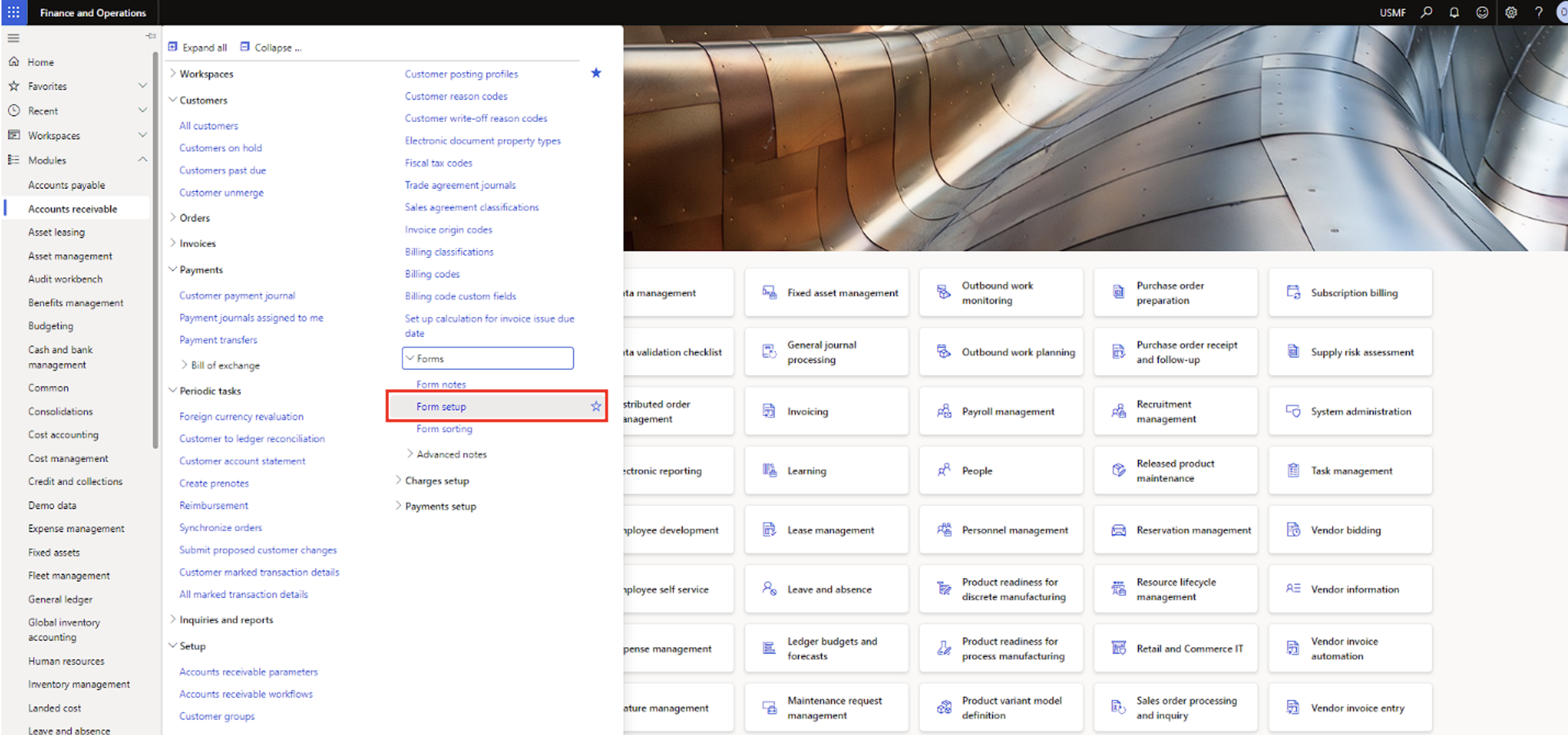
2. In Form Setup click on Print Management

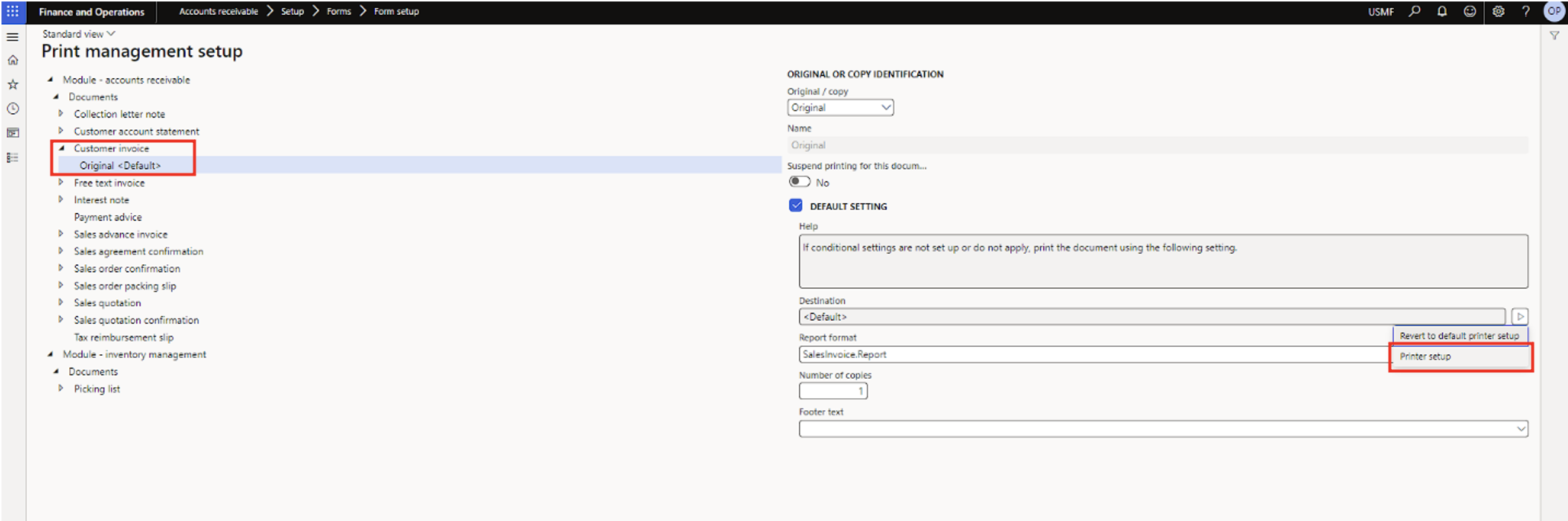
3. In Print Management Setup expand Customer Invoice and select Original
a. If there is nothing to expand, right click on Customer Invoice > and select New
b. This will create Original
4. On the right side of the screen, for Destination, click the arrow icon and select Printer Setup
5. In the page that opens:
a. Select Email
b. Under To, click Edit
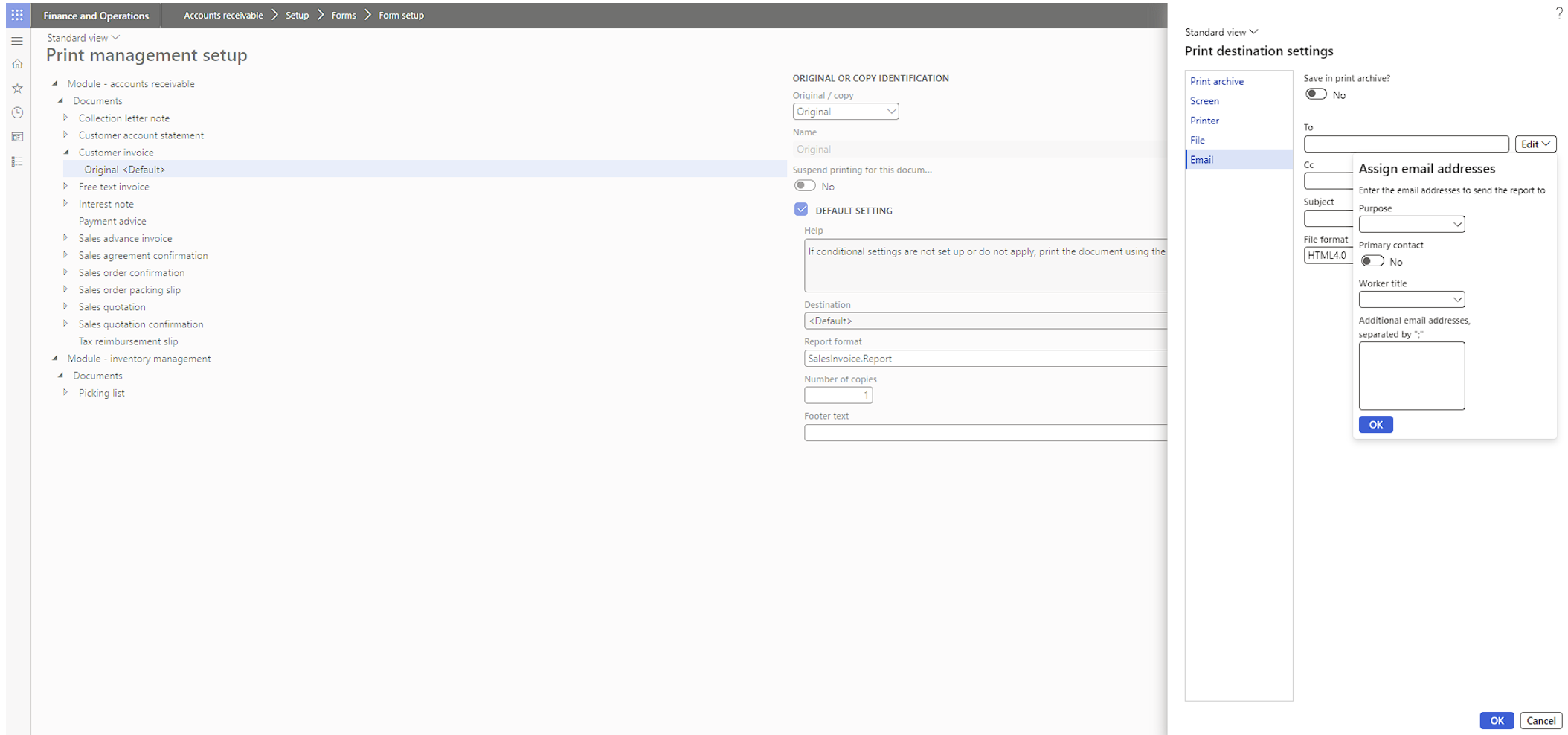
c. In the Purpose field select Invoice:
i. This will automatically take the email address from the customer that has Invoice set as purpose
ii. So for this to work, a) there must be an email address entered under contacts for each customer and b) the purpose of the email address must be set as Invoice
d. For Primary Contact, select:
i. No – if you want to send invoices to multiple email address with purpose Invoice for the same customer
ii. Yes – if you want to send invoices only to the primary email address
e. Then click OK.
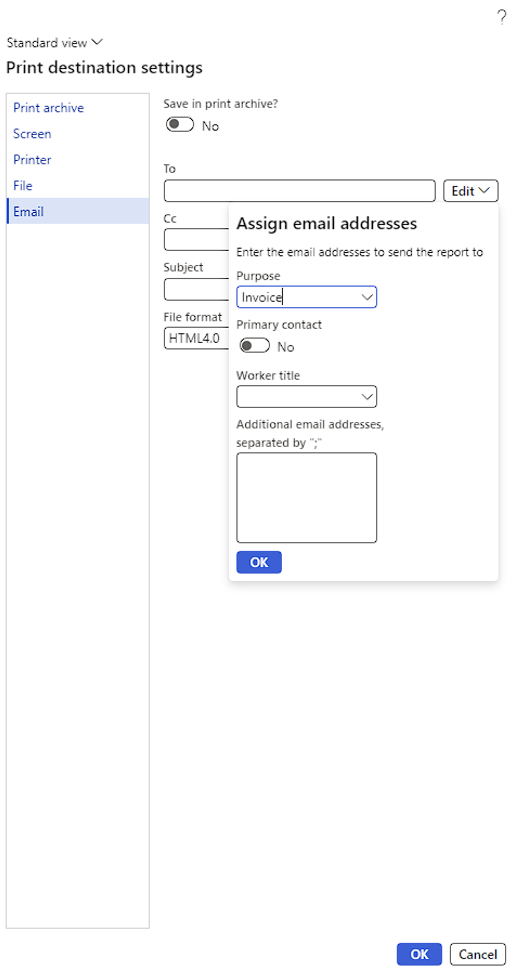
6. Now:
a. Add a subject line e.g. Invoice from Contoso
b. And select PDF as the file format
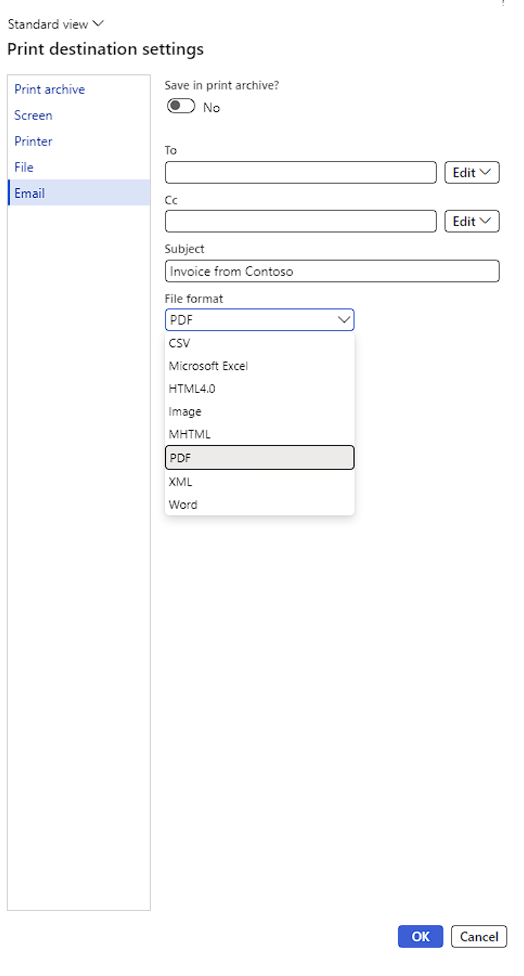
7. Click OK and the configuration is completed.

Free Text Invoice Configuration
1. Under Print Management Setup, select Free Text Invoice
2. The rest of the steps are the same as with the Customer Invoice
Project Invoice Configuration
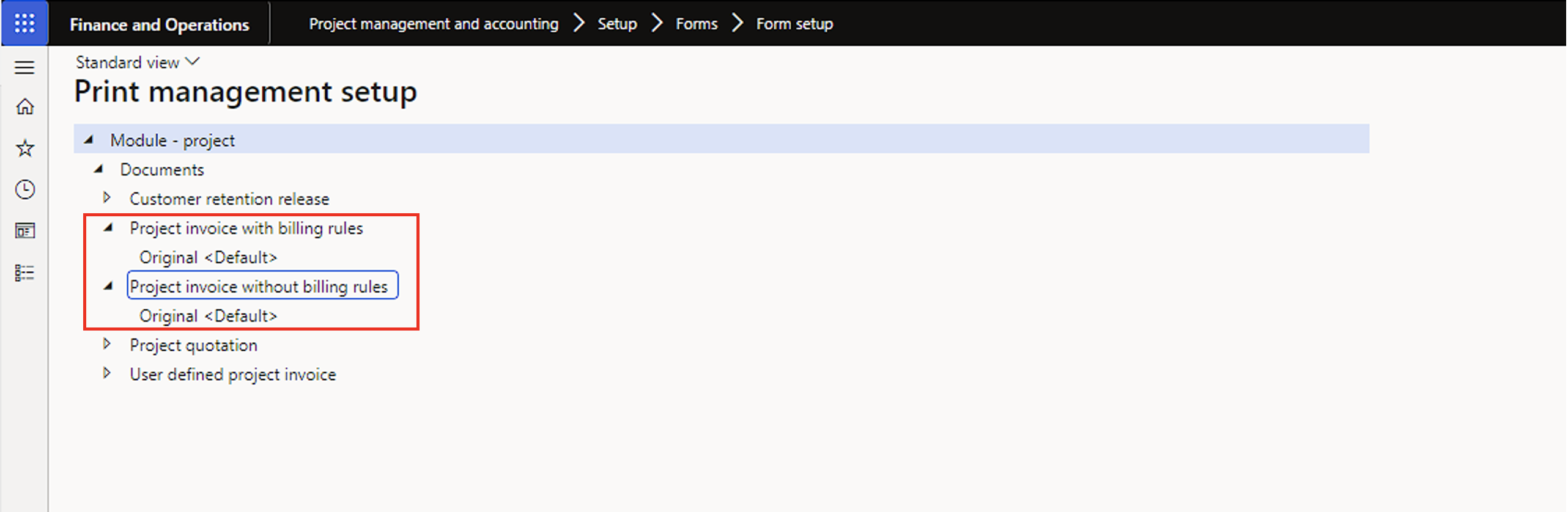
1. Go to Project Management and Accounting > Setup > Forms > Form Setup
2. Click on Print Management
3. Under Project invoice with billing rules and Project invoice without billing rules repeat the same steps as for the Customer invoice
Note
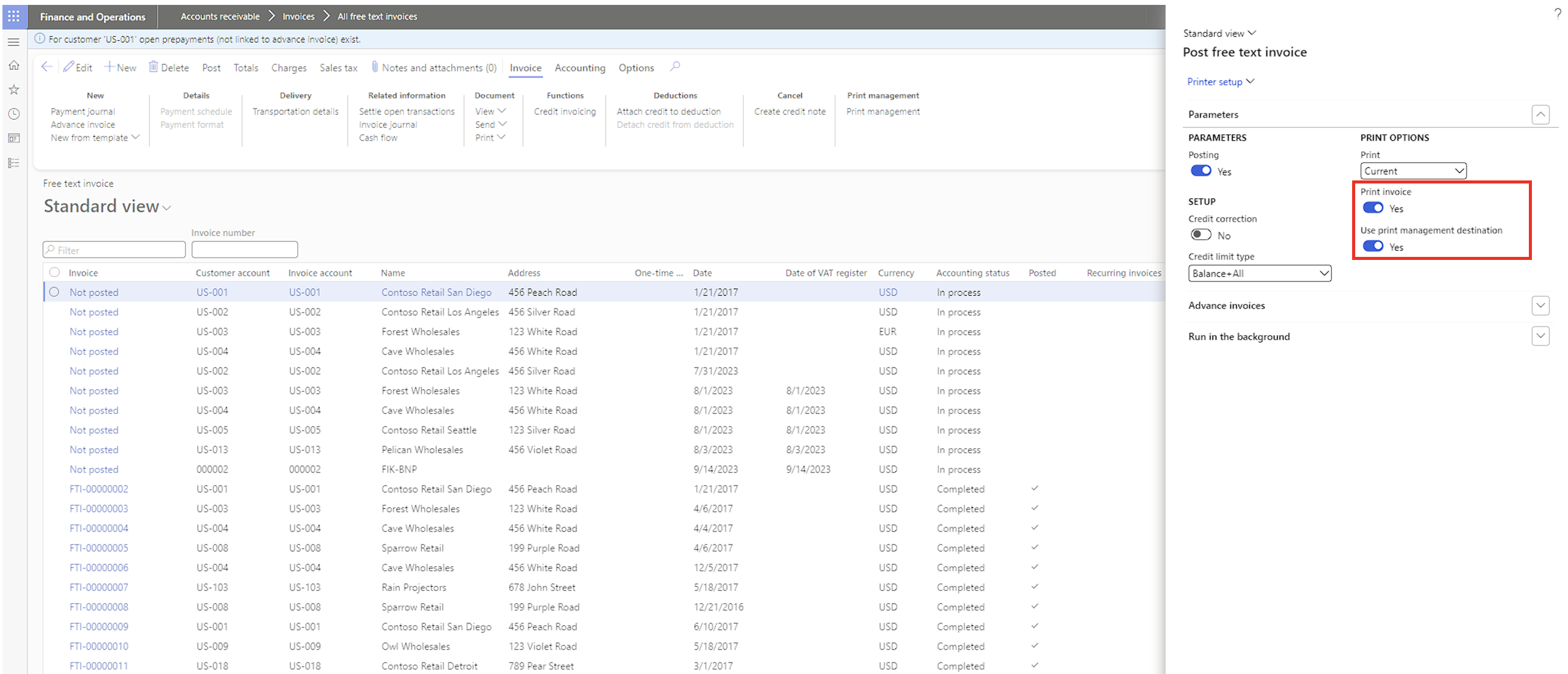
Whether it’s a Sales Order, Free Text, or Project invoice, when posting the invoice, make sure that Print invoice and Use print management destination are both set to Yes.