
According to Australian tax regulations, if you are business registered for Goods and Services Tax, you need to lodge Business activity statement (BAS). Businesses use this form to report their business tax entitlements and obligations.
For this purposes, Microsoft Dynamics 365 Finance offers BAS feature, that is designed to help the business to fill in their BAS. It includes:
- Goods and services TAX (GST) amounts that business owe to ATO from sales
- Goods and services TAX (GST) amounts that ATO owes to the business from purchases
- PAY AS YOU GO (PAYG) Tax Withheld
- PAY AS YOU GO (PAYG) Installment
- Fringe Benefit TAX (FBT)
By setting GST, PAYG and FBT codes that are associated with corresponding fields on the BAS report, Microsoft Dynamics 365 Finance enables the business to generate, preview and print the BAS report.
1ST STEP – Setting sales tax reporting codes
Tax > Setup > Sales tax > Sales tax reporting codes

They are associated with following fields on the BAS report

Additional codes that you can set up are following

2ND STEP – Setting up the BAS
Go to Organization administrations > Organizations > Legal entities and on the Tax registration tab in the Tax registration number field you should enter the company’s tax registration number
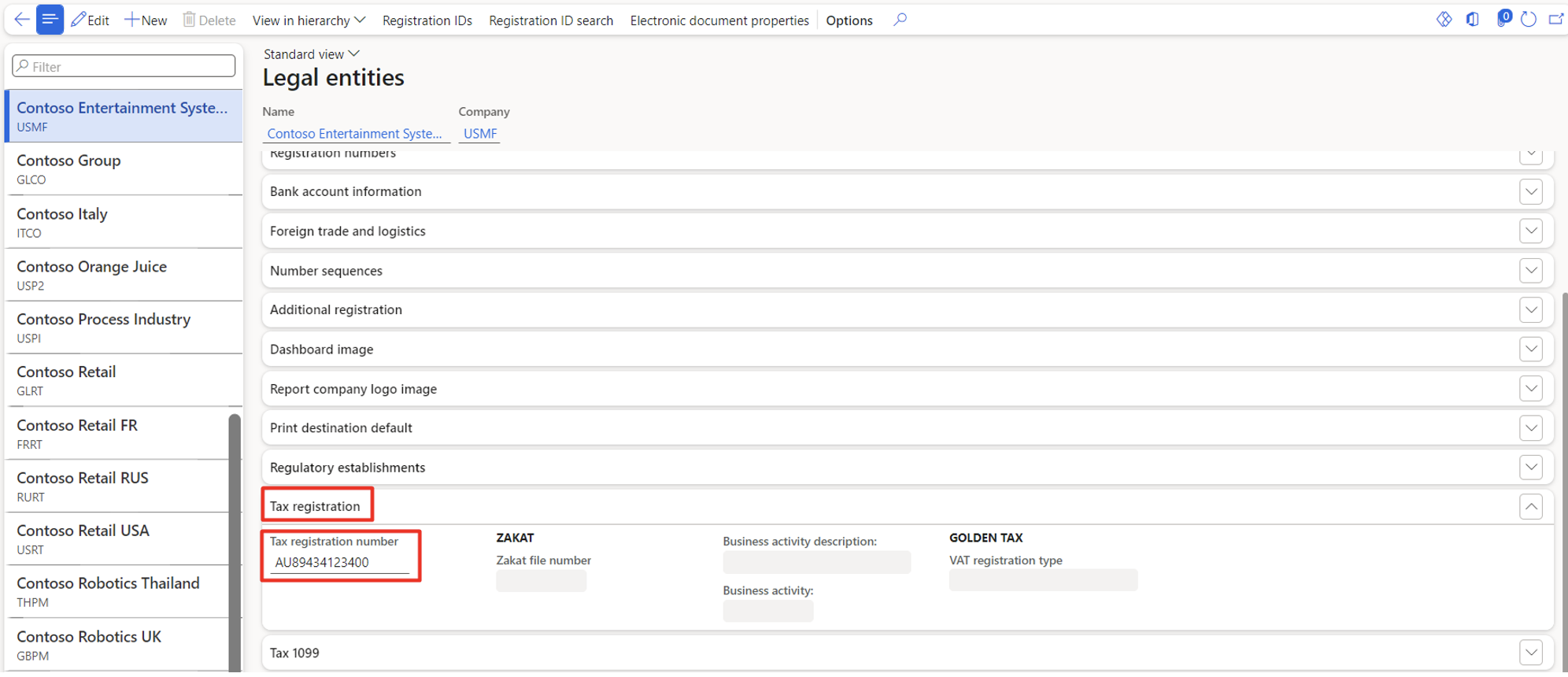
Than from the Microsoft repository download the latest version of the BAS (AU) report format

Back in General ledger > Ledger setup > General ledger parameters on the Sales tax tab, set the Apply sales tax taxation rules to No and in the Format mapping field select the previous downloaded BAS (AU) format.

3RD SETUP – Set up additional BAS report boxes
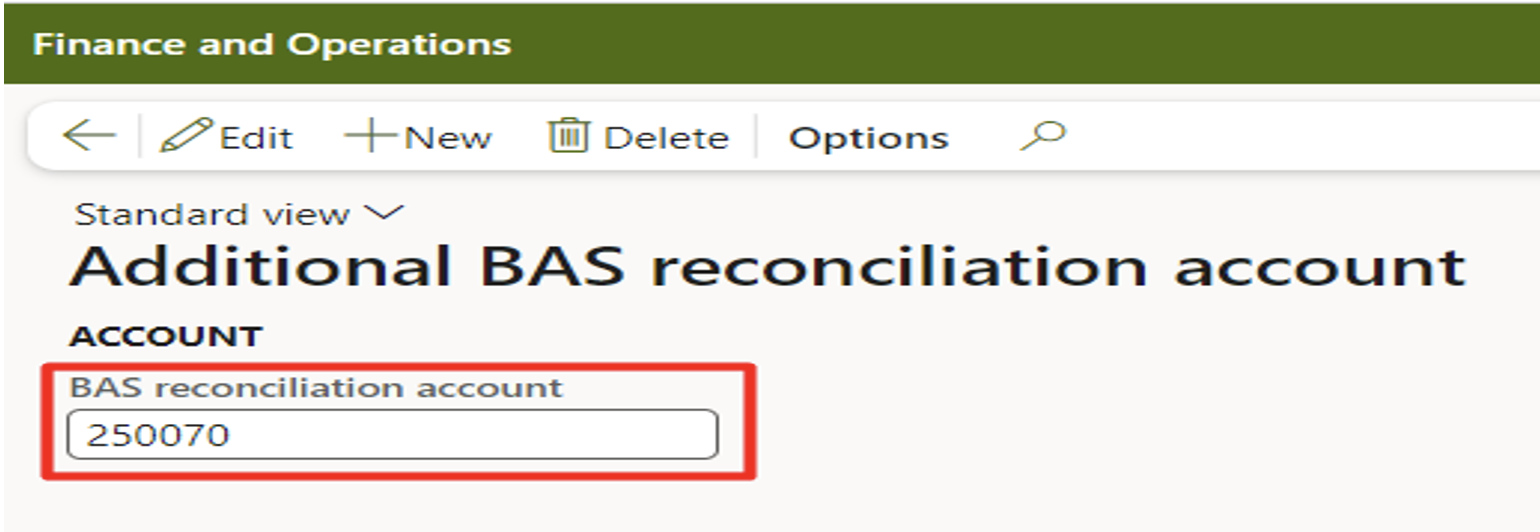
- Set up additional BAS reconciliation account
Go to Tax > Setup > Sales tax > Additional BAS reconciliation account and in the field specify the ledger account that will be used in the “Settle and post GST” procedure to post sales tax amount that are entered manually.
- Set up PAYG reason codes
PAYG Tax Withheld is income tax paid to the government by the payer of the income (the Company) rather than the recipient of the income (the Employee). That’s why this tax is withheld or deducted from the income due to the recipient. Amounts withheld are treated as advance payments of income tax due, so employees do not have a big tax bill at the end of the year.
PAYG Installments are regular prepayments of the tax on your business and investment income. Company makes regular payments (installments) during the year, usually once every 3 months, based on company’s business and investment income. When company lodge its tax return, PAYG installments that were paid during the year are offset against company’s tax, leaving with little or no tax to pay.
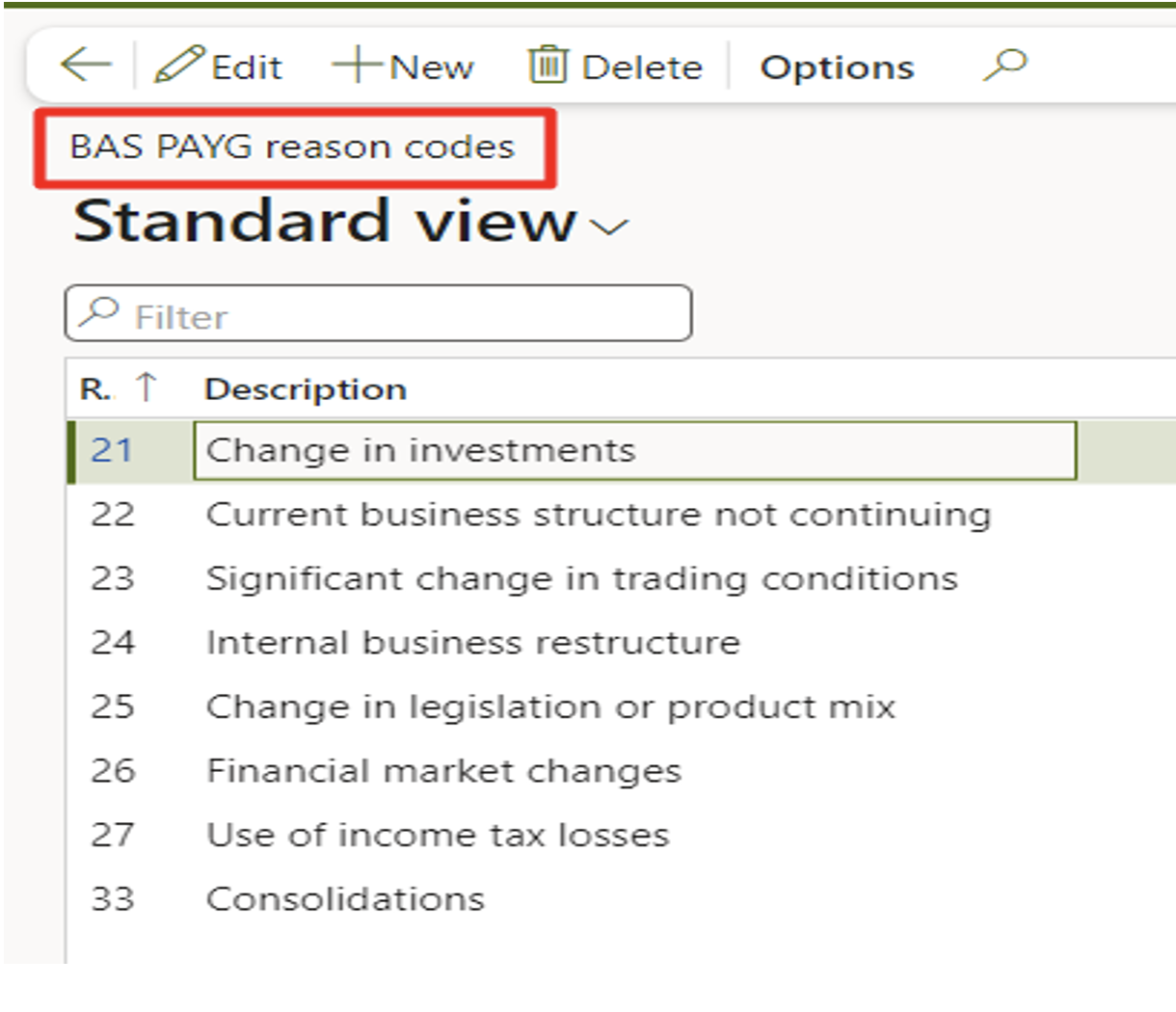
Go to Tax > Setup > Sales tax > BAS PAYG reason codes
- Set up FBT reason codes
Fringe benefit tax (FBT) is a tax paid by employers (the Company) on certain benefits provided to their employees or other associates. It is separate to income tax and is calculated on the taxable value of the fringe benefit. Examples of fringe benefits are: car parking, gym membership, concert tickets, work car for private purposes etc.
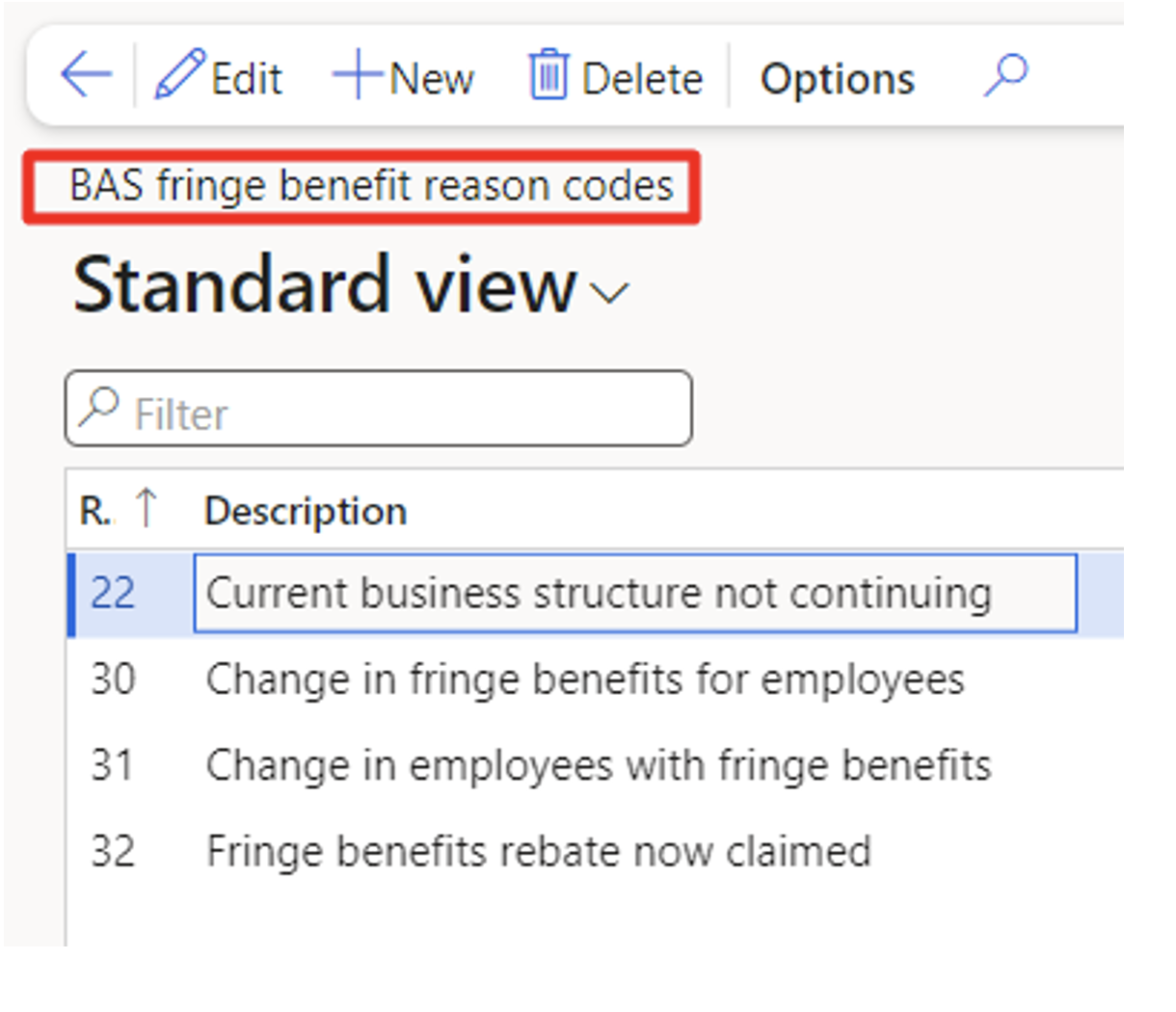
Go to Tax > Setup > Sales tax > BAS fringe benefit reason codes
4TH STEP – Generate and print the BAS report
- Generate additional BAS report boxes for the settlement period
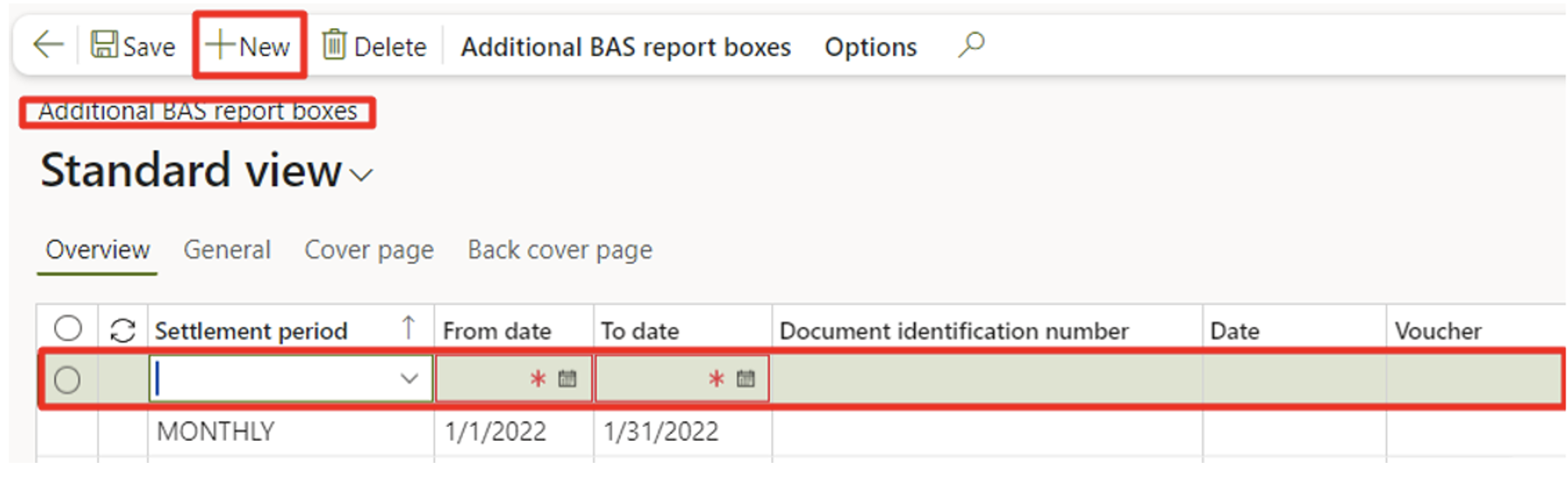
Go to Tax > Declarations > Sales tax > Additional BAS report boxes where you can create New by fulfilling: Settlement period, From/To dates, Doc identification number, Date and Voucher
On the Cover page you can set the following fields:

Note: Fields 7A and 1G are not used in the official BAS form.
On the Back cover page, you can set the following fields

Note: Fields 7C and 7D are not used in the official BAS form
- Generate and preview a BAS report, and settle and post GST
Go to Tax > Declarations > Sales tax > Australian BAS

Where you select:
- Settlement period
- From date – start date of the settlement period (1/1/2021 in this example)
- Transaction date – posting date of the sales tax settlement (10/30/2023 in this example)
- Sales tax payment version – select the version of the sales tax report to settle, can choose from 4 payment versions
- Original – version that include sales tax transactions of the first settlement calculation that was posted for the period
- Corrections – version that include sales tax transactions of subsequent settlement calculation period
- Latest corrections – version that include sales tax transactions of the last settlement calculation that was posted for the period
- Total list – version that include all sales transactions for the period, both original and corrected.
- Post and settle GST – set to YES, to post & settle and create a sales tax payment
After all selection, click OK, which generates the following “Print Australian BAS” dialog box. Click OK
